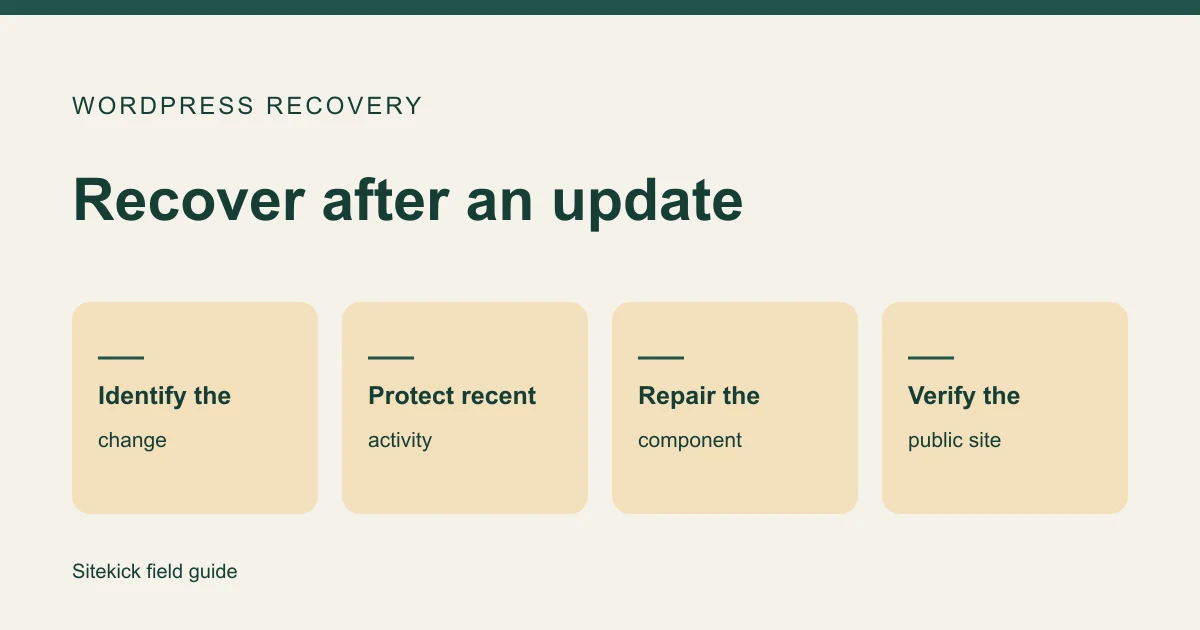
If a WordPress update breaks your site, pause additional updates and record what changed. Check which pages or actions fail, then find the last known good backup. If WordPress emailed a Recovery Mode link, use it privately to see which plugin or theme it paused. Confirm the cause before restoring the whole database, especially if your site takes orders or bookings.
Try this next
Understand your WordPress site's next steps.
Explore SiteKick Rescue and the free public assessment. Plugin downloads remain unavailable until the release is verified.
1. Find the part that broke
Open the homepage and a page customers depend on in a private browser window. Try signing into WordPress separately. Record the time, the affected URL, the visible error and whether the last change involved WordPress, a plugin, a theme or the PHP version.
| What you see | What to check first |
|---|---|
| The whole site shows a critical error | Look for a Recovery Mode email and ask your host for the error log around the update. |
| One page or checkout fails | Record the exact step and which component handles it, such as a payment plugin or shipping extension. |
| Visitors can browse but you cannot sign in | Check whether other administrators are affected and ask the host what changed around that time. |
| The site looks different across devices | Compare a private window and a second connection before changing files. Cached pages can make symptoms look inconsistent. |
Give your host or developer a redacted error and the time it happened. Keep passwords, recovery links and customer information private.
2. Use Recovery Mode if WordPress offers it
WordPress Recovery Mode can give an administrator dashboard access after certain fatal errors. Look for a message sent to the site's administration email address. If you get in, read the notice about the paused component and save its name and version before changing anything.
A recovery session can behave differently from a public visitor's session. Check the public site independently after the repair. If the email never arrives or the dashboard still fails, ask your host for the relevant log, backup options and a safe way to test a repair.
3. Choose the smallest recovery that preserves recent work
A broken plugin may need a compatible update, a rollback of that specific change or a replacement. Test the repair on a copy when you can. If the site is offline, agree with the host on which recovery option is quickest and what data it changes.
Check the restore timestamp and scope before approving a restore. Yesterday's backup may predate today's orders, bookings or content updates. Ask whether recovery needs files, the database or both. Save the current state when feasible and decide how recent customer activity will be reconciled before restoring a live shop or booking site.
4. Verify the customer journey
- Open the affected pages in a private window, including on a phone.
- Sign into WordPress normally and confirm the expected components work.
- Test the business action that matters, such as submitting a form, reaching a booking confirmation or completing checkout through an approved test flow.
- Record what changed, the known good backup and anything you still need to test. Plan the next update on a staging copy first.
For inquiries, use the WordPress form delivery checklist to confirm the message reaches the receiving inbox.
When to bring in help
Get help early if the site handles live transactions, the last usable backup is unclear or the person who maintained it is unavailable. Explore Sitekick's WordPress repair service and share the site address, the last known good time, what changed and the recovery options you have already found.