
Start with the page and task that feel slow. A homepage that takes too long to show an image, an admin screen that hangs when you save, and a checkout that stalls after shipping is selected need different investigations. Write down the URL, the step and whether you were signed in before adding another optimization plugin.
Try this next
Understand your WordPress site's next steps.
Explore SiteKick Rescue and the free public assessment. Plugin downloads remain unavailable until the release is verified.
Test three representative pages
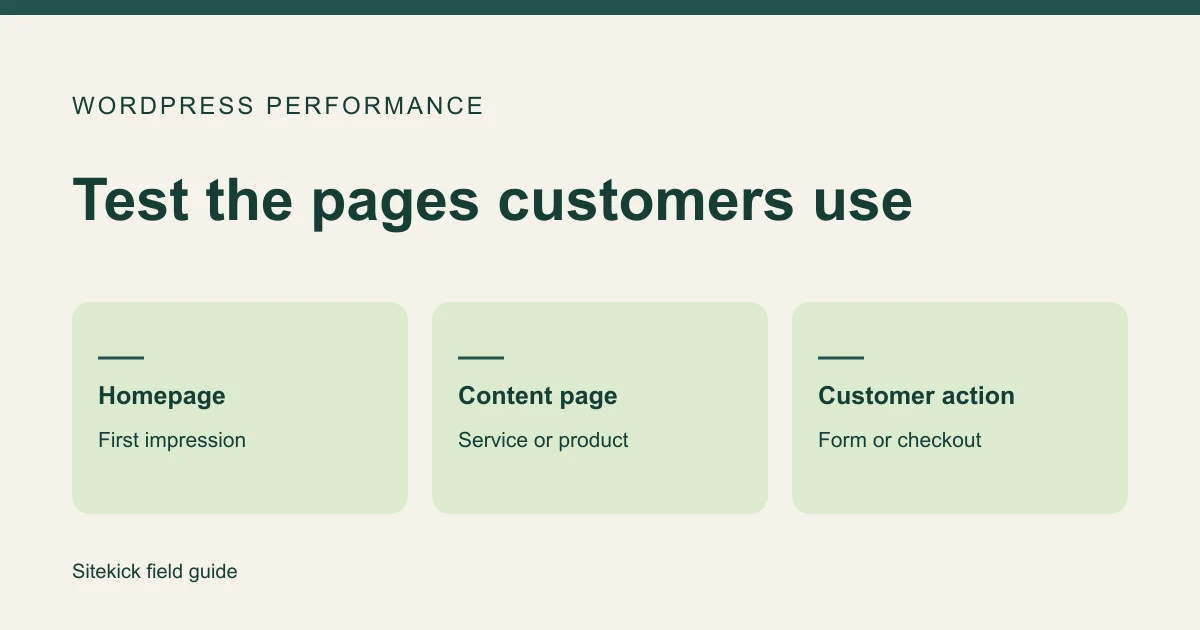
Choose the homepage, one important service or product page, and the page where a customer takes action. Open each in a private window. Use the same device and network for repeat tests, and check a phone as well as a desktop if most customers visit on mobile. Record when you ran the test and what took time so you can repeat it after a change.
| Pattern | What to investigate |
|---|---|
| The browser waits before anything appears | Ask the host to check server response times, cache hits, resource limits and database activity. |
| The text appears but the main photo arrives late | Inspect the image size and how it loads. Measure before replacing it. |
| A page feels sluggish after it loads | Look for heavy scripts such as chat, embeds, analytics or page-builder features. |
| Public pages are fine but WordPress admin is slow | Reproduce the slow admin action and check Site Health, host logs and the plugins involved. |
| Checkout stalls after selecting shipping or payment | Record the exact step and check the related service and extension with your developer. |
Use lab and visitor data for different questions
PageSpeed Insights offers a lab run under defined conditions and, when enough traffic data is available, measurements from real Chrome visitors. Use repeated lab runs to investigate a suspected change. Use visitor data to see how a page performs over time for real people. A lack of visitor data is common on lower-traffic pages.
Use WordPress Site Health for environment and configuration clues. When contacting your host, include the exact page or admin task and when it happened along with any Site Health findings.
Make one measured change at a time
- Media. Check the largest images on the slow page before adjusting the whole library. Retest at the same viewport size and check that key imagery still looks right.
- Caching. Ask which pages are cached and whether multiple tools manage the same layer. When changing cache rules, verify signed-in pages, carts and checkout separately.
- Plugins. Identify what each suspected plugin does and who depends on it. Test changes on a copy first, then repeat the affected customer and admin tasks.
- Hosting. If performance drops at busy times, ask for host metrics around those exact windows. A move might make sense for a confirmed hosting bottleneck. Slow third-party embeds will follow the site to the new host.
Measure the customer action you set out to improve. For a store where payments stall, checkout completion is the first thing to retest.
What to send if you want help
Send slow URLs, steps to reproduce, affected devices, time of day, and the host or cache setup if you know it. Include measurements from comparable runs. Explore Sitekick's WordPress performance assessment if the problem is persistent or difficult to isolate.